

Trello Documentation
Collecting requests through emails
Hipporello’s email integration allows you to convert incoming emails into Trello cards, turning your Trello board into a centralized request intake system. Emails sent to addresses such as sales@, support@, or contact@ can automatically create Trello cards in your selected board and list.
Accessing Email Configuration
Open your Trello board
Click the Hipporello Power-Up button located at the top right
Navigate to Hipporello Admin → Emails
Connecting an Email Inbox
Click Connect Email Inbox and choose one of the available options:
Connect your Gmail account
Connect your Outlook account
Use Hipporello’s built-in email infrastructure to generate an inbound email address
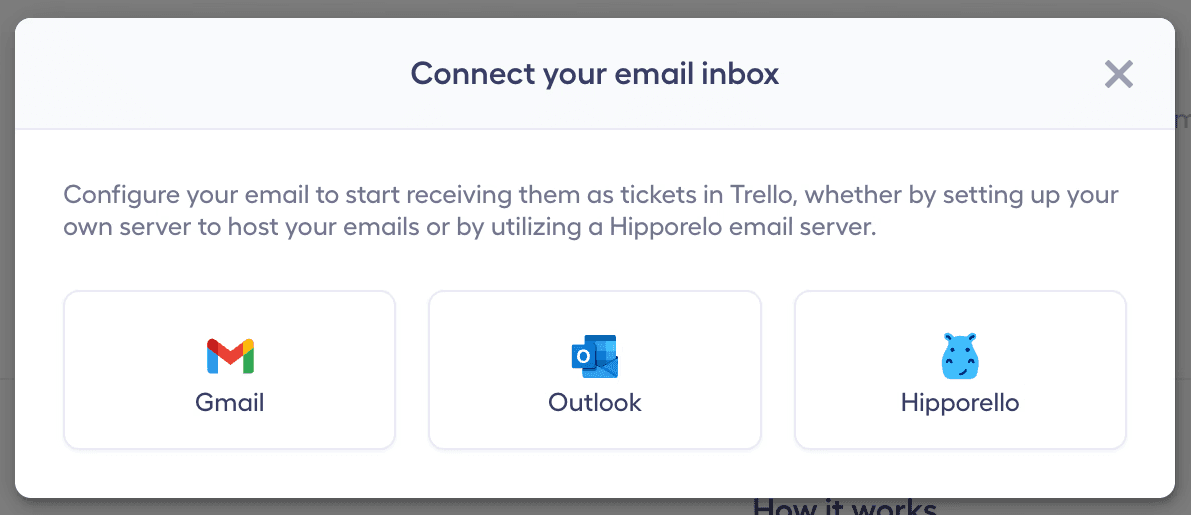
This flexibility allows you to either continue using your existing email system or start receiving requests through a Hipporello-generated inbox.
Configuring Email Routing
After connecting your email account:
Select the Trello board and list where incoming emails should create cards
Define whether attachments should be included in the created cards
Click Save to activate the configuration
Automatic Email-to-Card Conversion
Emails received in the connected inbox are automatically converted into Trello cards and placed in the selected list, ensuring that all incoming requests are organized and visible to the team.
Notifications
When an email creates a new card:
Portal owners
Assigned agents
Card members
Additional specified users
receive email notifications, allowing teams to respond quickly.
Communicating with Email Senders
Teams can communicate directly with the sender:
Reply from within the Trello card conversation module
Reply via the notification email
This ensures all communication remains centralized and traceable.
Flexible Email Intake Options
Hipporello supports two ways to capture incoming emails:
Direct Inbox Connection
Connect Gmail, Outlook, or Hipporello email infrastructure to automatically convert emails into Trello cards.
Email Forwarding
Forward emails from an existing mailbox to the designated inbound email address, allowing you to keep your current email workflows while benefiting from Trello-based request tracking.
Email Details Stored in Cards
Each Trello card created from an email includes:
Sender email address
Subject line
Email content
Attachments
This ensures your team has full context when reviewing and responding to requests.
Any other questions? Get in touch