

Jira Documentation
How to collect requests through emails in Jira
Hipporello’s email integration enables teams to convert incoming messages into Jira issues, transforming Jira into a centralized request intake hub. Emails sent to addresses such as support@ or help@ automatically create issues within the selected Jira project.
Accessing Email Settings
Open the Hipporello Admin panel and navigate to the Emails section to configure email integrations.
Connecting an Email Inbox
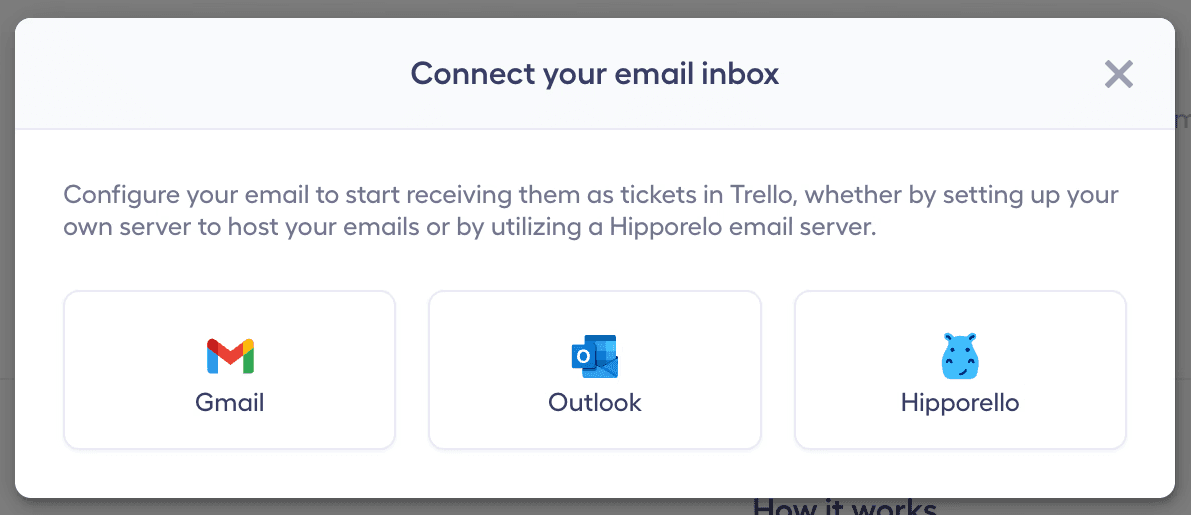
Click Connect Email Inbox and choose Gmail, Outlook, or Hipporello’s email infrastructure to connect your inbox.
Configuring Email Intake
After connecting your inbox:
Select which email folders should generate Jira issues
Choose the Jira project where issues will be created
Save the configuration to activate email intake
Automatic Email-to-Issue Conversion
Emails sent to the configured inbox are automatically converted into Jira issues, ensuring that requests are captured and organized consistently.
Notifications
Relevant stakeholders can receive notifications when new issues are created, allowing teams to respond quickly.
Email Communication
Teams can reply to requesters directly from the Jira issue or via email notifications, keeping the communication history centralized.
Included Email Details
Each email-generated issue includes:
Sender email address
Subject line
Message content
Attachments
Any other questions? Get in touch