

Jira Documentation
Jira Service Desk Automation Step by step Guide
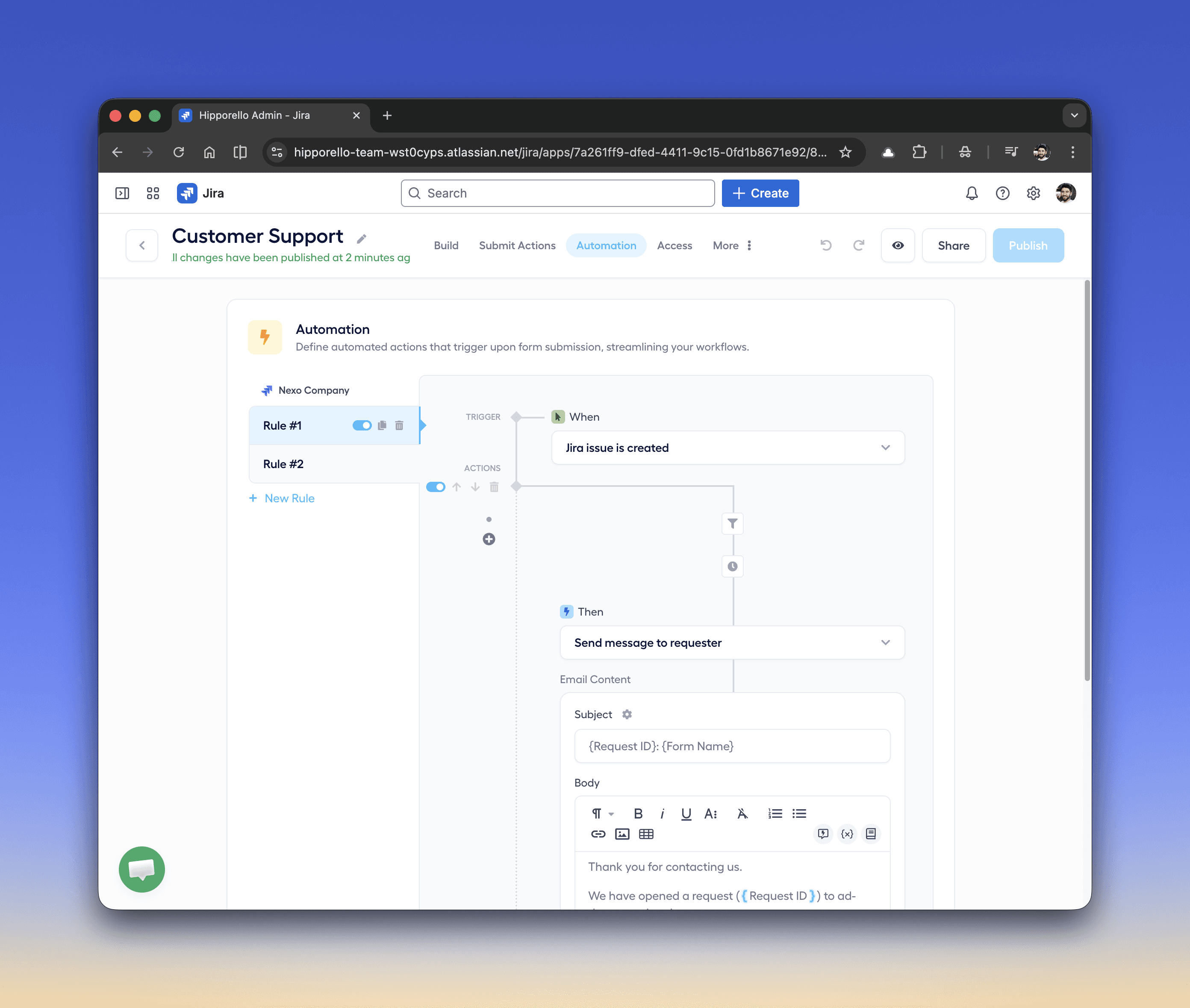
Hipporello’s service desk automations for Jira help teams reduce manual work by automatically updating issues, notifying requesters, and ensuring every request follows the correct workflow.
Automations allow support teams to respond to requests more efficiently while keeping operations structured and consistent.
Service desk automation enables your system to automatically perform actions when specific events occur within your Jira workflow.
For example, when a request is submitted through a form or email, automation can:
Assign the issue to the appropriate team member
Add labels to categorize the issue
Update the issue status or move it within the workflow
Send a confirmation email to the requester
Automation Triggers and Actions in Service Desk for Jira
Triggers initiate the automation when an event occurs in Jira.
Examples include:
Jira issue is created
Jira issue is updated
Comment is added to a Jira issue
Jira issue status changes
Labels are added to a Jira issue
For example, when a new issue is created through a form submission, an automation rule can automatically send a confirmation email to the requester.
Once a trigger occurs, predefined actions can be executed such as:
Send message to requester
Assign the issue to an agent
Add labels to the issue
Update the issue status
Add comments to the issue
Notify support agents
These actions help keep issues organized and ensure requesters receive timely updates.
Example Service Desk Automation Workflow in Jira
Trigger
When Jira issue is created
Condition
If request type = IT Support
Delay
Wait 10 minutes
Action
Send confirmation message to requester
This automation ensures the requester receives confirmation while allowing internal processing time.
Any other questions? Get in touch