

Asana Documentation
How to collect Asana issues through emails
With Hipporello’s email integration, you can turn your Asana project into a powerful communication hub. Incoming emails are automatically converted into Asana tasks, and you can interact with senders directly from the task or via email.
Emails sent to addresses like sales@, support@, or contact@ can automatically generate tasks in Asana.
Here’s how to use this feature efficiently:
Accessing Email Settings
To access the Hipporello Admin panel, go to https://admin.hipporello.com in your browser, then navigate to the Emails section.
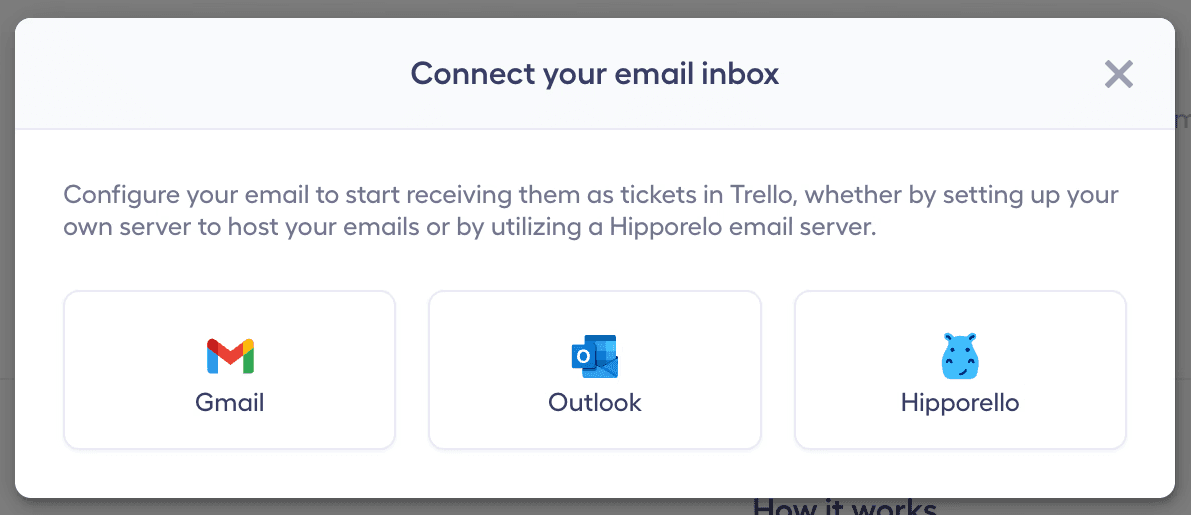
Click the Connect Email Inbox button and choose Gmail, Outlook, or Hipporello’s email infrastructure to easily connect your email account.
Configuring Email Address Settings
Once your email account is connected, you need to complete the following fields:
Select Email Folders
In the “Create tasks from emails in these folders” field, choose which folders should generate tasks in Asana.
Examples: Inbox, Sent Mail, or any custom support folders.
Choose the Destination Project
In the “Create tasks in the following project” field, select the Asana project where email-based tasks should be created.
This ensures all requests are routed into the correct workflow.
After completing these selections, click Done to finish the setup.
Automatic Email-to-Task Conversion
Email-to-Project Setup
Emails sent to your configured address are automatically converted into tasks in your selected Asana project, ensuring structured organization of incoming requests.
Comprehensive Notifications
When an email arrives, relevant team members including the portal owner, assigned agent, task followers, and additional specified members receive email notifications so they can respond quickly.
Email Management Features
Direct Sender Communication
You can reply to email senders directly from within the Asana task, creating a more organized and trackable communication flow than traditional email threads.
Custom Access Policies
Set rules to control which emails are converted into tasks, ensuring only relevant communications enter your workflow.
Automation & Efficiency
Use automations, quick texts, and variables to streamline repetitive tasks, such as sending acknowledgment emails or standard responses.
Personalized Email Footers
Add a custom email signature or footer to outgoing responses for a professional touch.
Flexible Inbound Email Options
Hipporello provides two ways to bring emails into Asana:
Direct Inbound Addresses
Use Hipporello-provided inbound email addresses to receive emails directly as tasks.
Email Forwarding
Forward emails from your existing inbox to the designated Hipporello address. This allows you to maintain your current email workflow while still benefiting from structured task management in Asana.
Detailed Email Information in Tasks
Each task created from an email includes:
Sender’s email address
Subject line
Message body
Attachments
This ensures your team has full context for responding and managing requests effectively.
By implementing this setup, your Asana workspace becomes a centralized hub for both task management and customer communication, improving team collaboration and response efficiency.
Any other questions? Get in touch