

Notion Documentation
Collecting Notion database items through emails
With Hipporello’s email integration, your Notion workspace can function as a centralized request intake channel. Incoming emails are automatically converted into structured items, and teams can respond to senders either directly from the item or through email replies.
Emails sent to addresses such as sales@, support@, or contact@ can automatically generate new request items in Notion.
Accessing Email Settings
To open the Hipporello Admin panel, go to https://admin.hipporello.com in your browser and navigate to the Emails section.
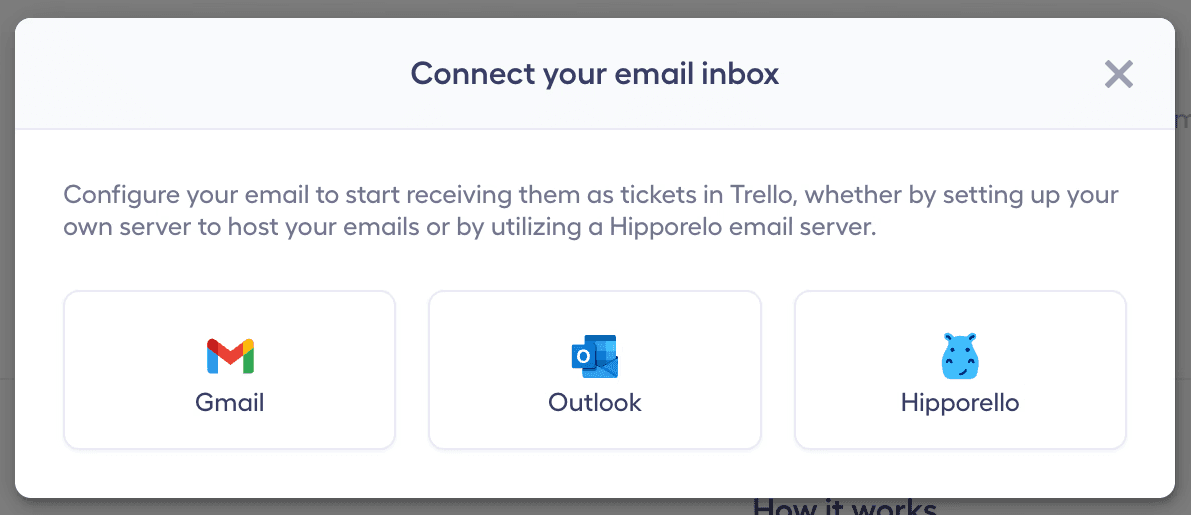
Click the Connect Email Inbox button and select Gmail, Outlook, or Hipporello’s email infrastructure to connect your email account.
Configuring Email Address Settings
After connecting your inbox, complete the required configuration fields:
Select Email Folders
In the Create items from emails in these folders field, choose the folders that should generate request items.
Examples include Inbox, Sent Mail, or dedicated support folders.
Choose the Destination Database
In the Create items in the following database field, select the Notion database where email-generated requests should be stored.
This ensures that incoming requests are routed to the correct workflow.
Once completed, click Done to finalize the setup.
Automatic Email-to-Item Conversion
Email-to-Database Setup:
Emails sent to your configured address are automatically converted into items in your selected Notion database, keeping incoming requests structured and organized.
Notifications:
When a new email arrives, relevant stakeholders including the portal owner, assigned agent, and collaborators receive notifications so that requests can be handled quickly.
Email Management Features
Direct Sender Communication
Teams can reply to the sender directly from the request item, maintaining a centralized communication history.
Custom Access Policies
Define rules that determine which incoming emails are converted into items so that only relevant communications enter your workflow.
Automation & Efficiency
Use automations, quick texts, and variables to handle repetitive actions such as sending acknowledgment messages or standard replies.
Personalized Email Footers
Add a signature or standardized footer to outgoing messages to maintain consistent branding and professionalism.
Flexible Inbound Email Options
Hipporello supports two methods for capturing emails:
Direct Inbound Addresses
Use Hipporello-generated inbound email addresses to create request items automatically.
Email Forwarding
Forward emails from your existing inbox to the designated Hipporello address while continuing to use your current email workflow.
Email Details Included in Each Item
Each item created from an email includes:
Sender’s email address
Subject line
Message body
Attachments
This ensures that teams have full context when reviewing and responding to requests.
Any other questions? Get in touch