
When customers or internal teams reach out for help, their experience starts long before your support team receives the ticket and answers. It begins with your service desk portal, which is in a way the digital “front desk” of your business.
One important job of an effective digital front desk is to make sure clients know they are in the right place as soon as they arrive. The best way to ensure this is to align your user portal with your brand’s identity as much as possible.
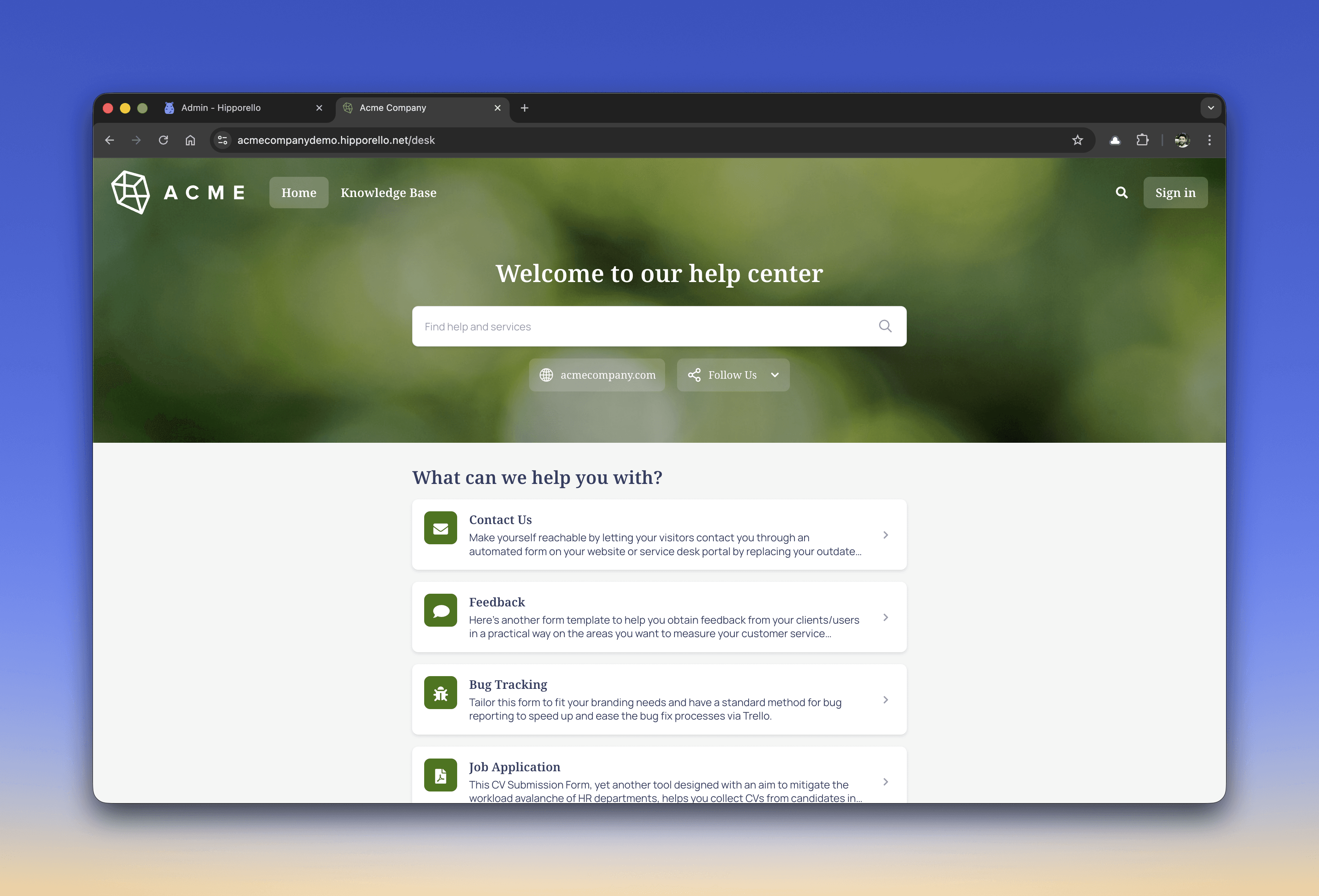
That’s exactly why Hipporello Service Desk offers a fully customizable user portal that you can brand, organize, and personalize to fit your organization regardless of what you use it for.
Why Branding Matters for User Portals
When it is an extension of your company and services, a user portal should be easily customizable. Some tools allow for customization, but only with the help of 3rd party tools and integrations. It is important to make branding possible within the tool and to keep it easy without depending on developers. This is because a branded portal is important for many reasons:
Service desk portals build credibility with visual cues:
When users see your logo, typography, and tone, they instantly recognize your brand. It reassures them that they’re reaching out to the right team.
Branding of user portals improve usability with familiar messaging:
When your visuals, and structure follow your brand’s design system, users navigate more intuitively and this reduces confusion.
Branded portals enhance experience with clear structures:
Subtle design details like matching cover images, branded headers, and clean layouts/content blocks create a feeling of professionalism and ease of use.
With Hipporello’s customization tools, you can easily achieve this consistency without needing a designer or developer.
Hipporello's Custom Branding Options to Make Your Service Desk Portal Uniquely Yours
Hipporello gives you a customizable user portal once you install the service desk. It’s possible to get your user portal branded by giving your company website during installation. The system emulates the colors, logo and other branding elements to create your user portal. This can form the basis for your branding and you can change any part from Hipporello’s Admin Panel.
When you navigate to User Portal > Preview and Customize, you’ll find the General tab. This is the heart of your portal’s visual identity. Here, every setting works together to align the look and feel of your service desk with your brand.
You also get the chance to preview the portal after the changes before you publish it officially.
Logo, Cover Image, and Social Share Image
You can start with uploading your logo. It appears on your portal header and across communications. It helps users connect the support experience with your company’s identity.
Next, you can upload a cover image. A cover image can be anything from a branded background, a product photo, to an illustration that reflects your brand personality. It’s the first big visual your users see, so it’s important to choose something that sets the right tone.
And finally you may want to add a social share image for those moments when your help portal link is shared on social media or embedded elsewhere. The Social Share Image ensures your preview looks clean and professional.
Overlay and Favicon
The overlay toggle is a subtle but powerful detail. By adding a transparent overlay, you can make your texts more readable and bring visual harmony.
Then there’s the favicon (that tiny icon in your browser tab). It’s a small detail but an important branding element that keeps your service desk recognizable even when users have multiple tabs open.
Fonts and Colors
In this section you can select your brand colors and fonts for headings and body text. Choose a font that matches your brand voice. Every visual decision here reinforces your brand personality, helping your service desk feel less like a generic tool and more like an integrated part of your business.
Customize the Experience with Layout Blocks
Once your portal’s visuals are set, it’s time to structure how your end-users interact with it. The User Portal > Preview and Customize > Homepage Layout tab lets you build a clear experience using flexible content blocks.
Blocks are in a way building sections. You decide what appears, in what order, and how much information to show. This flexibility allows you to design your own “front desk” experience that fits your team’s workflow and your users’ expectations. The homepage can include articles, forms, announcements, organized the way you want.
What is a Form Block?
You can display a few or all of your forms in a form list, group them by topic, or highlight a single form if your portal serves one function only.
For example, a marketing agency might choose to show separate forms for “New Client Request,” “Ongoing Project Feedback,” and “Billing Questions.” However, an internal IT team might decide to use just one “Submit a Support Ticket” form for portal visitors.
You can toggle visibility and decide what’s most useful to your audience.
What is an Announcement Block?
Announcements can include service updates, product launches, scheduled maintenance, or other important information. By adding an announcement block, you can make your message clear and organized for the visitors.
Announcements appear right on the portal homepage, so users see them before submitting requests, which helps reduce confusion and unnecessary tickets.
What is an Article Block?
At Hipporello, you can enable a knowledge base if you need to have articles on your portal in addition to forms. Once you enable it, it will automatically appear on your portal. Add a block for articles, FAQs, or guides. This empowers users to find answers on their own, helping you reduce repetitive support tasks and empowering customers to self-serve confidently 24/7.
What is an Embed Block?
With the Embed Block, you can integrate a form or external content directly into your portal. External content can be anything from videos and maps to third-party widgets.
For instance, if you want to guide your users better, you could embed a short “How to use this portal” video. Another example is to embed your calendar, making it easy for users to access it for appointments, or an external dashboard.
Personalize Portal Preferences: From Name to Language
By using the Preferences section under the General tab, you can define the Service Desk name (the one users see across your communications), choose the User Portal Language, enable requester ratings and set your choices of wordings for responder names in automated and manual messages (i.e using a team member’s real name or a default name like “agent”).
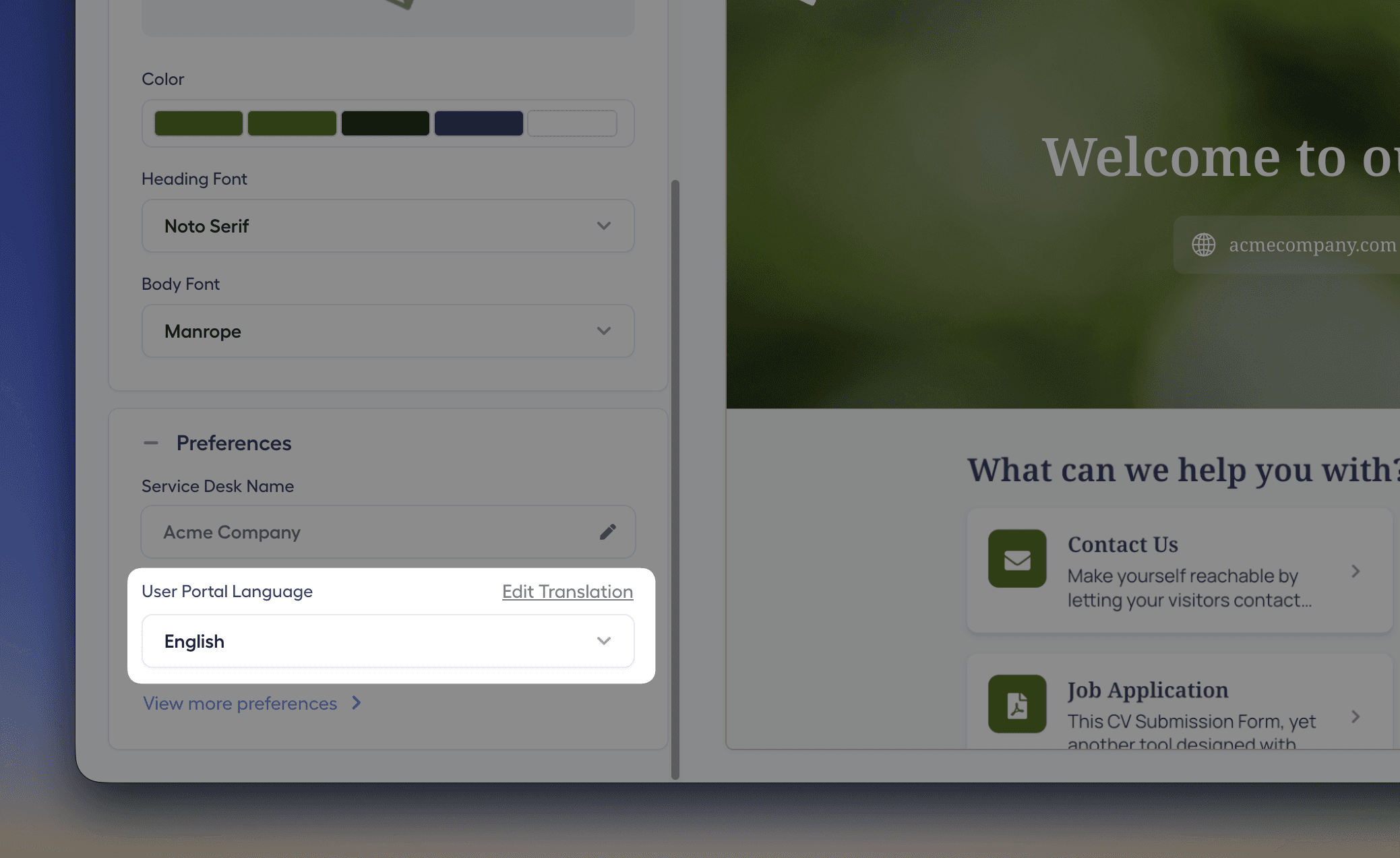
This section also allows you to change the language of the user portal. Some teams might use the service desk in English but their service desk user portal might be aiming at offering services to their clients in another language. You can add a language, translate interface texts, and even tweak translations to match your brand tone and messaging.
For example, a SaaS company serving clients across Europe might keep English as default but add French, German, and Spanish. This allows teams to offer their clients a localized experience.
Use a Custom Domain for your User Portal
There is one more powerful step that helps you make the experience truly seamless and coherent for your endusers: using a custom domain. Instead of directing your users to a generic link, Hipporello allows you to define a custom domain and publish your service desk under your own branded subdomain such as support.yourcompany.com.
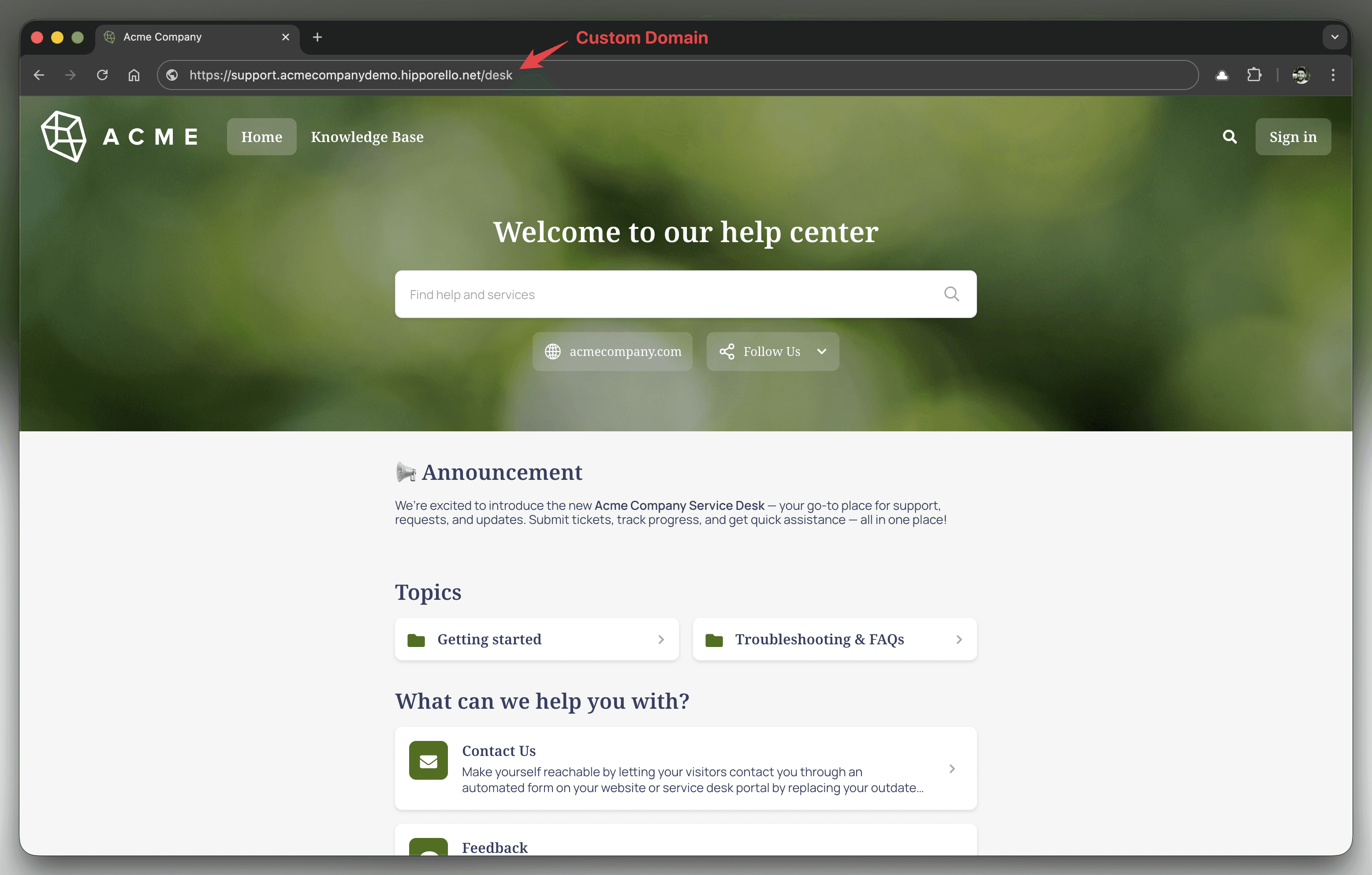
To change your domain from the generic one provided by Hipporello, go to the Admin Panel and navigate to User Portal > Domain configuration. Click Add a custom domain button and follow the steps to complete your setup without needing any developer assistance.
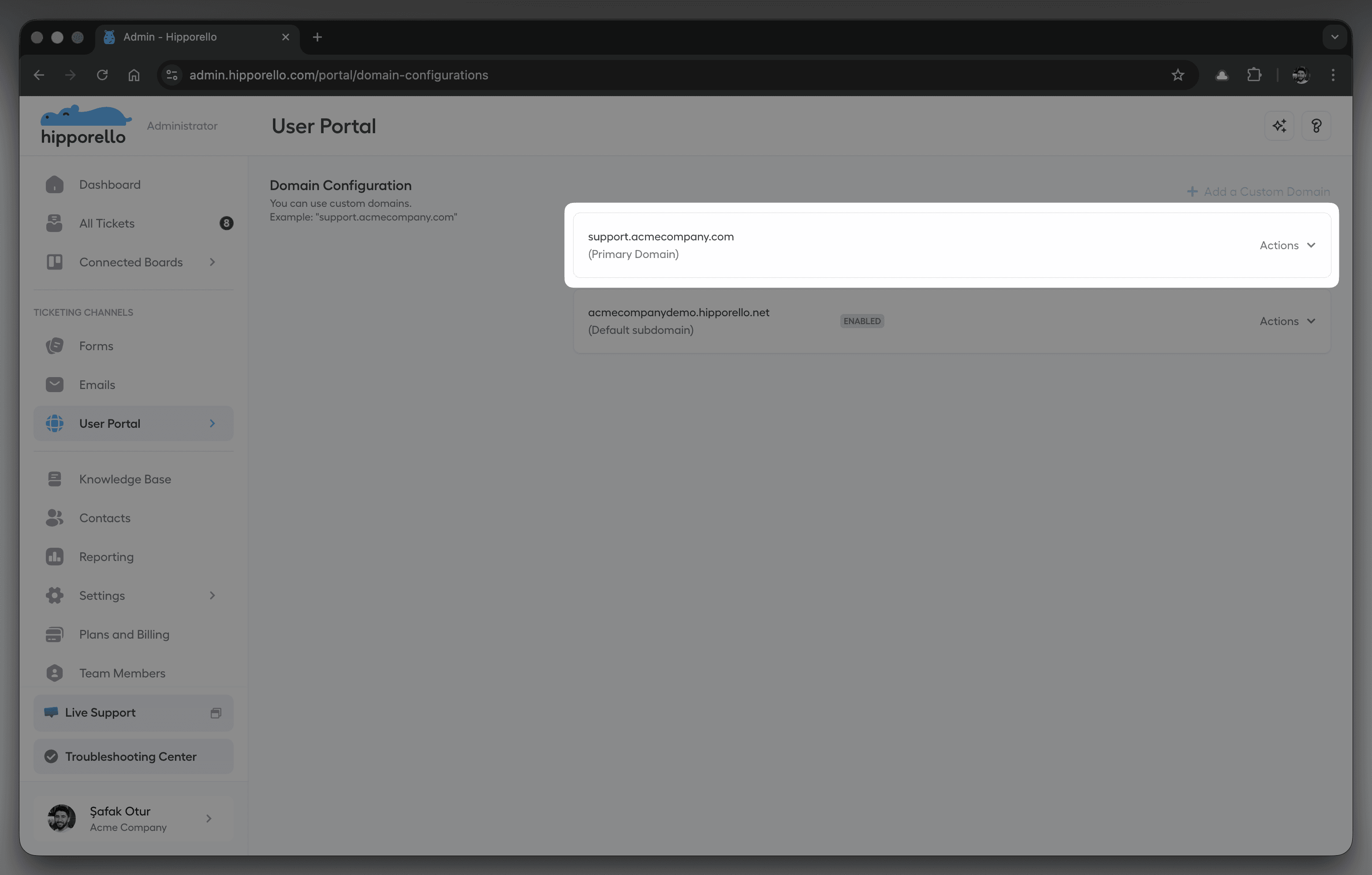
Adding a custom domain in addition to your visual branding, layout blocks, and language configurations ensures that users get a cohesive experience in your service desk portal.
The Result: You Get A Service Desk That Feels Like Home
With Hipporello’s deep customization options, your service desk transforms from a generic request inbox into a branded customer experience.
Your users see a help page that reflects your branding and thus reduces friction and confusion.
And because everything is simple to configure without need for coding or design support, you can change your portal anytime your brand grows or your needs change.
👉 Click the Get Started button on the top right to explore Hipporello Service Desk and start customizing your branded user portal today.
Table of Contents


